
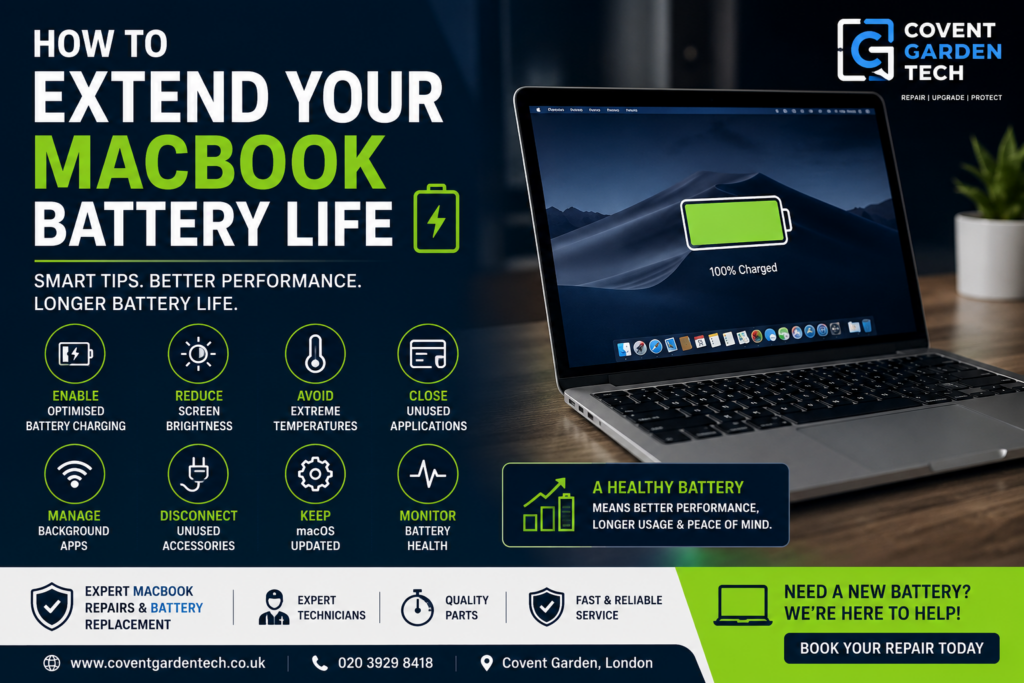
Introduction
Your MacBook is designed to deliver exceptional performance and long-lasting battery life, but over time, every battery naturally wears down. Whether you use your MacBook for work, study, creative projects, or entertainment, taking proper care of its battery can significantly improve its lifespan and keep it performing at its best.
At Covent Garden Tech, we help customers with everything from battery diagnostics to professional MacBook battery replacements and repairs. If your MacBook battery is draining quickly or showing signs of wear, our expert technicians are here to help.

Why MacBook Battery Health Matters
MacBook batteries are lithium-ion batteries designed to retain their performance for hundreds of charging cycles. However, factors such as excessive heat, constant full charging, intensive workloads, and ageing can gradually reduce battery capacity. Apple recommends checking Battery Health in macOS, where a “Service Recommended” status indicates reduced capacity or abnormal battery performance.
Maintaining good battery health means:
Longer battery life between charges
Better overall performance
Fewer unexpected shutdowns
Reduced need for early battery replacement
Improved resale value
1. Enable Optimised Battery Charging
Modern versions of macOS include Optimised Battery Charging, which learns your charging habits and delays charging beyond 80% until you need your MacBook. This helps reduce battery ageing and prolongs the battery’s overall lifespan. Apple recommends leaving this feature enabled whenever possible.
To check:
System Settings → Battery → Battery Health
2. Avoid Extreme Temperatures
Heat is one of the biggest enemies of lithium-ion batteries.
Try to:
Avoid leaving your MacBook in direct sunlight.
Don’t use it on blankets or soft surfaces that block ventilation.
Keep cooling vents clean.
Use your MacBook in a cool, well-ventilated environment.
Excessive heat accelerates battery wear and may permanently reduce battery capacity.
3. Reduce Screen Brightness
The display is one of the biggest power consumers.
Lowering brightness by even 20–30% can noticeably increase battery life without affecting usability.
Also enable:
Auto Brightness
True Tone
Dark Mode (especially on compatible displays)
These settings help reduce unnecessary power consumption.
4. Close Unused Applications
Many apps continue running in the background, consuming CPU power and battery.
Regularly close applications you aren’t using, especially:
Video editing software
Web browsers with dozens of tabs
Virtual machines
Cloud syncing tools
Games
Activity Monitor can help identify apps using excessive energy.
5. Disconnect Unused Accessories
USB drives, external SSDs, monitors, hubs, and other peripherals all consume power.
Disconnect accessories you don’t currently need to maximise battery runtime.
6. Keep macOS Updated
Apple frequently releases software updates that improve battery efficiency, fix bugs, and optimise power management.
Always install the latest stable version of macOS for the best battery performance.
7. Manage Background Apps
Applications that constantly refresh or sync data can drain your battery.
Review:
Startup applications
Cloud storage sync tools
Background browser extensions
Messaging apps
Disabling unnecessary background processes helps extend battery life.
8. Use the Correct Charger
Always use an Apple-approved or high-quality charger with the correct wattage for your MacBook model. Using an underpowered charger may lead to slow or inconsistent charging, while damaged or poor-quality chargers can affect charging reliability.
9. Monitor Battery Health
You can easily check your MacBook battery health by going to:
Apple Menu → System Settings → Battery
If the battery status shows “Service Recommended”, the battery has degraded or isn’t functioning normally and should be inspected by a professional technician.
Other warning signs include:
Battery draining unusually fast
Unexpected shutdowns
Slow charging
Swollen battery
Overheating
Reduced battery capacity
10. Know When It’s Time for a Battery Replacement
Even with excellent care, every lithium-ion battery eventually reaches the end of its useful life.
If your MacBook:
Lasts only a short time on battery
Requires constant charging
Shows “Service Recommended”
Shuts down unexpectedly
Has a swollen battery
…it may be time for a professional battery replacement. Apple notes that battery replacement is appropriate when battery health has significantly declined or the system reports service is recommended.
Why Choose Covent Garden Tech?
At Covent Garden Tech, we provide professional MacBook repair services using experienced technicians and quality replacement parts. Whether your MacBook needs a battery replacement, charging diagnosis, or hardware repair, we aim to restore your device quickly and reliably.
Our services include:
MacBook battery replacement
Battery diagnostics
Charging port repair
Logic board repair
Screen replacement
Keyboard and trackpad repairs
Software troubleshooting
Complete MacBook servicing
Our technicians work on a wide range of MacBook models and focus on accurate diagnostics, transparent pricing, and dependable repairs.
Final Thoughts
A healthy battery is essential for getting the best performance from your MacBook. By following simple habits such as enabling Optimised Battery Charging, reducing heat exposure, managing background apps, and keeping macOS updated, you can extend your battery’s lifespan and enjoy longer use between charges.
If your MacBook battery no longer performs as it should, don’t wait until it fails completely. The experienced team at Covent Garden Tech can diagnose the issue and recommend the most cost-effective solution, whether that’s a battery replacement or another repair.