
Introduction
Your smartphone is much more than a device for making calls and sending messages. It can contain your photos, emails, banking information, passwords, contacts, private conversations and access to your social media accounts.
With so much personal information stored on one device, protecting your phone should be a priority.
Fortunately, improving your phone security doesn’t have to be complicated. A few simple habits can significantly reduce the risk of unauthorised access, data theft and online scams.
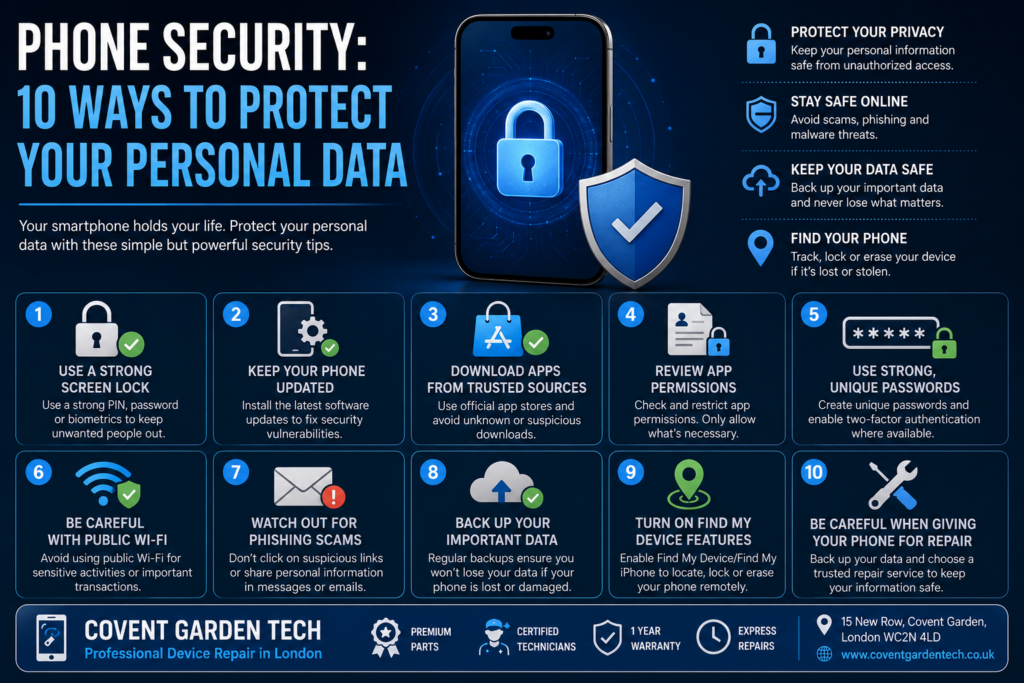
Here are 10 practical ways to protect your personal data on your phone.

1. Use a Strong Screen Lock
Your screen lock is the first line of defence if your phone is lost or stolen.
Avoid using easy-to-guess PINs such as 1234, 0000 or your date of birth. Instead, use a strong PIN or password that would be difficult for someone else to guess.
Where available, enable biometric security such as:
Fingerprint recognition
Face recognition
A strong passcode combined with biometrics
Even if someone gets physical access to your phone, a secure lock can make it considerably harder for them to access your personal information.
2. Keep Your Phone’s Software Updated
Software updates aren’t only about getting new features. They can also include important security fixes.
Cybercriminals may attempt to exploit vulnerabilities in outdated operating systems and applications. Keeping your phone updated helps protect against known security issues.
Turn on automatic updates where possible, and regularly check for updates to:
Your phone’s operating system
Banking applications
Messaging apps
Web browsers
Social media apps
Other applications containing sensitive information
3. Download Apps From Trusted Sources
Be careful about where you download applications.
Official app stores generally provide additional security checks, but you should still review an app before installing it.
Before downloading an unfamiliar application, consider:
Who developed it?
Does it have a large number of legitimate reviews?
What permissions does it request?
Does it really need access to your contacts, microphone or location?
Does the app appear trustworthy?
Avoid downloading applications from suspicious websites or links sent by unknown people.
4. Review App Permissions
An application may request access to your camera, microphone, contacts, photos or location.
Some permissions may be necessary for an app to work correctly, while others may not be.
Review your phone’s privacy settings regularly and remove permissions that an application doesn’t need.
For example, a simple calculator application probably doesn’t need access to your contacts or microphone.
Reducing unnecessary permissions can limit the amount of personal information an app can access.
5. Use Strong, Unique Passwords
If you use the same password for multiple accounts, one compromised account could put several others at risk.
Create unique passwords for important accounts, particularly:
Email
Online banking
Apple or Google accounts
Social media
Cloud storage
Shopping accounts
A password manager can help you create and store strong, unique passwords without requiring you to memorise all of them.
Where available, enable two-factor authentication (2FA) for an additional layer of protection.
6. Be Careful With Public Wi-Fi
Free public Wi-Fi can be convenient, but you should be cautious when using unfamiliar networks.
Avoid entering sensitive information or accessing important accounts on networks you don’t trust, particularly if the connection appears unsecured.
If you need to use public Wi-Fi, make sure your phone and applications are updated and avoid performing sensitive transactions unless you’re confident the connection is secure.
When possible, use your mobile data connection or a trusted network for sensitive activities.
7. Watch Out for Phishing Scams
Sometimes the biggest security risk isn’t the phone itself—it’s the person using it.
Phishing messages can appear to come from banks, delivery companies, social media platforms or other legitimate organisations. They may ask you to click a link, provide personal information or enter your password.
Be suspicious of messages that:
Create a sense of urgency
Ask for passwords or security codes
Request financial information
Contain unexpected links
Offer prizes or unusual rewards
Claim your account will be closed unless you act immediately
If you receive a suspicious message, don’t click the link. Instead, contact the organisation through its official website or app.
8. Back Up Your Important Data
Security isn’t only about preventing criminals from accessing your information. It’s also about protecting your data if your phone is lost, damaged or stops working.
Regularly back up important information such as:
Photos and videos
Contacts
Documents
Messages
Important files
You can use a trusted cloud backup service or another secure backup method.
A current backup can make recovering your information much easier if your phone is damaged or needs professional repair.
9. Turn On Find My Device Features
Modern smartphones offer tools that can help you locate a lost device.
Apple devices use Find My, while Android devices offer Google’s device-finding features.
These services can help you locate your phone and, depending on the device and settings, remotely lock it or erase its data.
Make sure these features are enabled before your phone goes missing—not after.
10. Be Careful When Giving Your Phone for Repair
If your phone needs professional repair, think about the personal information stored on it before handing it over.
Where practical, back up your data and remove sensitive information before repair. Make sure you understand whether the technician needs your passcode and why.
A reputable repair service should treat your device and personal information responsibly.
At Covent Garden Tech, the team provides smartphone, iPhone, iPad, MacBook, laptop, computer and tablet repair services in London. The company says it uses premium-grade parts, has certified technicians and provides a one-year warranty on repairs.
What If Your Phone Has Already Been Compromised?
If you believe someone has accessed your phone or accounts, act quickly.
Start by:
Changing important passwords.
Enabling two-factor authentication.
Checking your banking and other sensitive accounts for unusual activity.
Removing suspicious applications.
Installing available security updates.
Reviewing account login activity where available.
Backing up important data.
Considering professional technical assistance if the problem persists.
If your phone has been damaged and you can no longer access your information, professional repair may also help restore the device and, where possible, preserve access to your data.
Protect Your Phone Before Something Goes Wrong
Your smartphone contains a huge amount of personal information, so phone security shouldn’t be something you think about only after your device is lost, stolen or compromised.
A strong passcode, regular updates, careful app permissions, secure passwords, backups and awareness of phishing scams can all help protect your information.
And don’t forget the physical security of your device. A damaged phone, faulty charging port or malfunctioning screen can eventually affect your ability to access important information.
If you need professional phone or device repair in London, Covent Garden Tech offers repair services for smartphones, tablets, laptops, computers and Apple devices. The company is located at 15 New Row, Covent Garden, London WC2N 4LD and offers express repair services.
Need professional phone repair? Visit Covent Garden Tech to learn more about their repair services and book an appointment.