
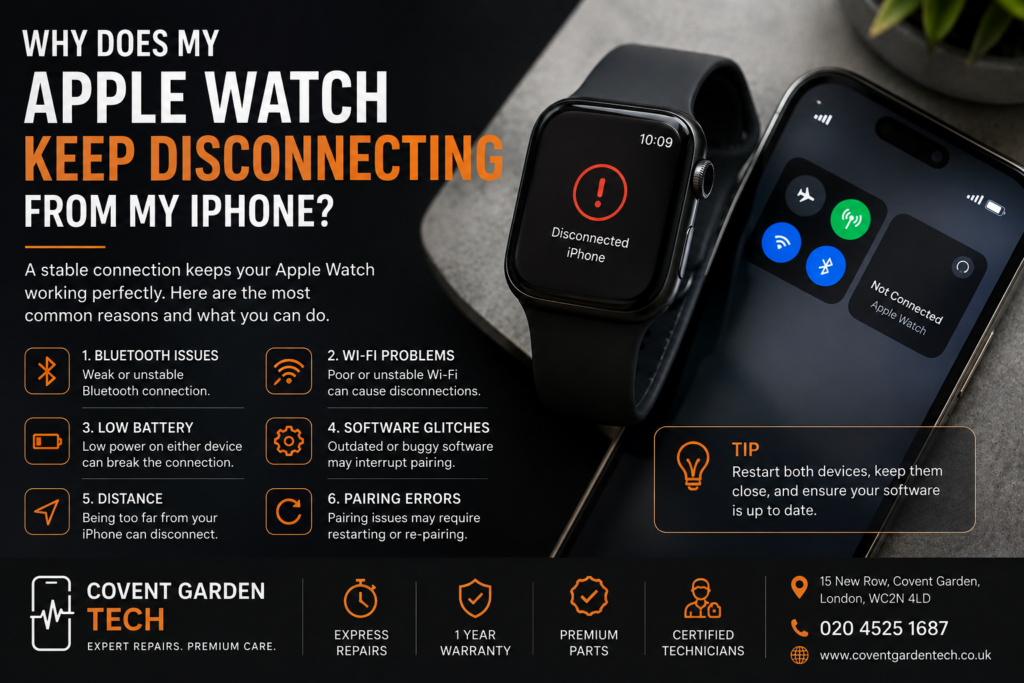
Introduction
An Apple Watch is designed to work seamlessly with your iPhone, keeping you connected to notifications, calls, messages, apps, health information, and more. So when your Apple Watch keeps disconnecting from your iPhone, it can quickly become frustrating.
The good news is that frequent disconnections don’t necessarily mean your Apple Watch is damaged. The problem can often be caused by Bluetooth, Wi-Fi, software glitches, low battery, connection settings, or an issue with either device.
In this guide, we’ll look at the most common reasons your Apple Watch keeps disconnecting and what you can do to fix the problem.

1. Check Your Bluetooth Connection
Your Apple Watch normally communicates with your iPhone using Bluetooth when the devices are close together.
If Bluetooth is disabled or experiencing a temporary glitch, your watch may disconnect.
On your iPhone:
Open Settings.
Tap Bluetooth.
Make sure Bluetooth is switched on.
Keep your iPhone and Apple Watch close together.
Wait a few moments to see whether the connection is restored.
You can also toggle Bluetooth off and back on to refresh the connection.
2. Make Sure Airplane Mode Is Turned Off
Airplane Mode can interfere with the wireless connections your Apple Watch relies on.
Check both your iPhone and Apple Watch to make sure Airplane Mode is disabled.
If it is already off, turning it on briefly and then switching it off again can sometimes refresh the wireless connection.
3. Keep Your iPhone and Apple Watch Close Together
Distance can also cause connection problems.
If you leave your iPhone in another room while moving around with your Apple Watch, the devices may eventually lose their Bluetooth connection.
Try keeping the two devices close together and see whether the connection becomes stable.
If your Apple Watch works normally when it is close to your iPhone but frequently disconnects when you move farther away, the issue may be related to wireless connectivity rather than a hardware fault.
4. Check Your Wi-Fi Connection
Wi-Fi can also play a role in how your Apple Watch stays connected and communicates with your iPhone and online services.
Make sure your iPhone is connected to a reliable Wi-Fi network and that your watch can connect to an appropriate network when necessary.
If other devices are also experiencing connection problems, your Wi-Fi network may be the source of the issue rather than the Apple Watch itself.
5. Restart Both Devices
A simple restart can resolve temporary software and connectivity problems.
Try restarting both your iPhone and Apple Watch.
After they have restarted, keep the devices close together and check whether they reconnect automatically.
This is one of the easiest troubleshooting steps and is worth trying before considering a repair.
6. Check for Software Updates
Running outdated software can sometimes cause compatibility and connectivity issues.
Check whether your iPhone and Apple Watch have software updates available.
Keeping both devices updated can help improve stability, fix known bugs, and maintain compatibility between the devices.
Before installing a major update, make sure you have an appropriate backup of your important information.
7. Check the Battery on Both Devices
Low battery levels can affect how your devices operate.
If either your iPhone or Apple Watch is running very low on power, charge the device and then try reconnecting.
If your Apple Watch repeatedly loses connection despite having plenty of battery remaining, however, the issue may require further troubleshooting.
8. Check Whether Your Apple Watch Is Actually Disconnected
Sometimes an Apple Watch may appear disconnected even though it can still communicate with the iPhone.
Look at the connection indicator on your Apple Watch and check your iPhone’s Watch app.
If the watch repeatedly changes between connected and disconnected, take note of when it happens.
For example:
Does it happen when you leave the house?
Does it happen when the battery gets low?
Does it happen after an iPhone update?
Does it happen when using a particular app?
Does it happen even when the devices are next to each other?
These details can help identify the underlying problem.
9. Re-Pair Your Apple Watch
If basic troubleshooting hasn’t worked, you may need to unpair and pair the Apple Watch with your iPhone again.
Before doing this, make sure important information is backed up.
Unpairing essentially gives your devices a fresh connection and can resolve persistent pairing or communication problems caused by software glitches.
If you are unsure about doing this yourself, getting professional assistance can be a safer option.
10. Your Apple Watch Could Have a Hardware Problem
If your Apple Watch continues disconnecting after you’ve tried the usual troubleshooting steps, there could be a hardware-related issue.
For example, the problem could involve:
Wireless connectivity components
Internal hardware
Battery problems
Physical damage
Liquid damage
Faults caused by previous repairs
If your Apple Watch has recently been dropped, exposed to liquid, or suffered physical damage, it’s especially worth having it professionally inspected.
When Should You Get Your Apple Watch Checked?
Occasional disconnections don’t necessarily indicate a serious problem.
However, professional diagnosis may be appropriate if your Apple Watch:
Disconnects repeatedly throughout the day
Won’t stay connected even when next to your iPhone
Has experienced physical or liquid damage
Won’t pair correctly after resetting
Has other problems such as charging or screen issues
Continues experiencing connection problems after software troubleshooting
A professional technician can determine whether the problem is software-related or caused by faulty hardware.
Why Choose a Professional Repair Service?
Attempting to open an Apple Watch yourself can be risky because these devices contain delicate internal components.
A professional repair service can diagnose the problem before recommending a repair, helping you avoid unnecessary replacement of parts.
Covent Garden Tech provides repair services for Apple devices and other gadgets, including Apple Watch, iPhone, iPad, MacBook, computers, smartphones, tablets, and laptops. The company states that its technicians are certified and have repaired more than 20,000 devices. It also offers a 1-year warranty on repairs and uses premium-grade replacement parts.
Final Thoughts
If your Apple Watch keeps disconnecting from your iPhone, don’t immediately assume that the watch needs replacing.
Start with the basics: check Bluetooth, disable Airplane Mode, keep the devices close together, restart both devices, check your Wi-Fi connection, and make sure your software is up to date.
If the problem continues despite these steps, it may be time to have the Apple Watch professionally diagnosed.
For customers looking for Apple Watch and Apple device repair in London, Covent Garden Tech offers express repair services from its location at 15 New Row, Covent Garden, London, WC2N 4LD. The company advertises repairs for a wide range of devices and states that many repairs can be completed quickly.
Need help with your Apple Watch? Contact Covent Garden Tech to arrange a professional diagnosis and repair.