
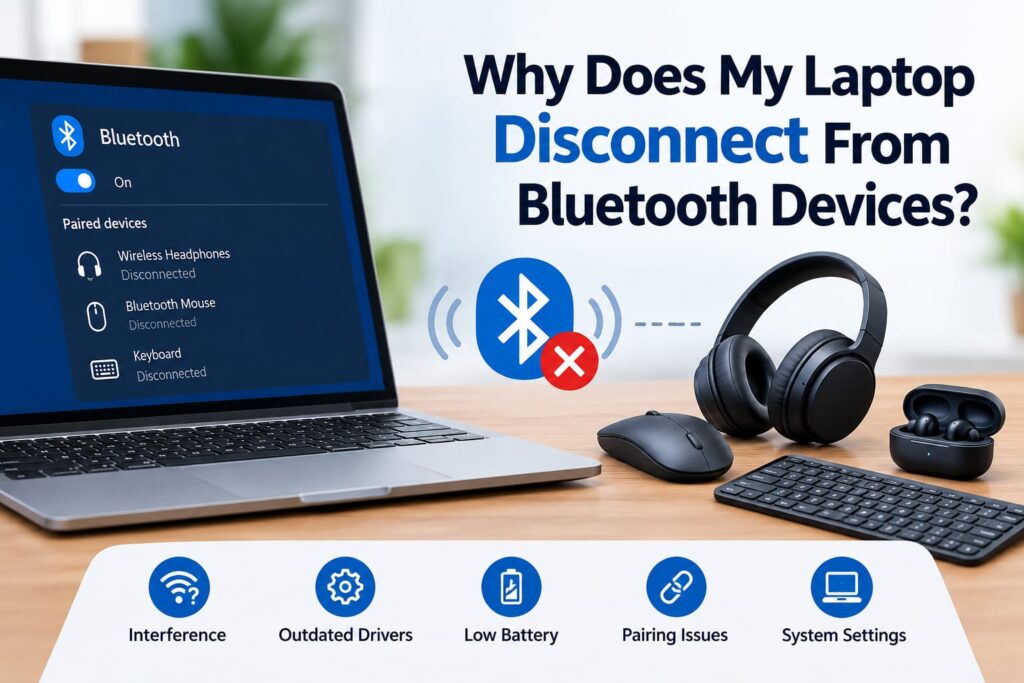
Introduction
Bluetooth makes it easy to connect wireless headphones, speakers, keyboards, mice, game controllers and other accessories to a laptop. But when a Bluetooth device keeps disconnecting, the experience can quickly become frustrating.
You might notice your headphones cutting out during a video call, your wireless mouse stopping unexpectedly, or your keyboard disconnecting every few minutes.
Fortunately, frequent Bluetooth disconnections do not always mean that your laptop has a serious hardware problem. Issues with power-saving settings, outdated drivers, interference, device batteries, Windows services or Bluetooth hardware can all affect the connection.

Common Reasons Your Laptop Keeps Disconnecting From Bluetooth
There are several possible causes. Finding the right one usually requires checking both the laptop and the Bluetooth accessory.
1. Low Battery on the Bluetooth Device
One of the simplest causes is also one of the easiest to overlook.
Wireless headphones, mice, keyboards and speakers rely on their own batteries. When the battery becomes low, some devices may struggle to maintain a stable connection.
Before changing laptop settings, fully charge the Bluetooth accessory and try connecting it again. Microsoft specifically recommends checking the battery level when troubleshooting Bluetooth connection problems.
2. Your Bluetooth Device Is Too Far Away
Bluetooth has a limited practical range. Walls, furniture and other obstacles can affect the quality of the wireless signal.
If your headphones work normally when you’re sitting close to the laptop but start disconnecting when you move farther away, distance may be the main issue.
Try keeping the accessory closer to the laptop and see whether the connection becomes more stable.
3. Power-Saving Settings Are Interrupting Bluetooth
Power management can sometimes cause Bluetooth to disconnect.
Windows may use power-saving features to reduce energy consumption, particularly when a laptop is running on battery. Microsoft recommends checking battery-saving settings and, where applicable, the Bluetooth adapter’s power-management options.
If your Bluetooth device disconnects mainly when your laptop is running on battery power, power management is worth investigating.
4. Outdated or Corrupted Bluetooth Drivers
Drivers allow Windows to communicate properly with the Bluetooth hardware inside your laptop.
If the driver is outdated, corrupted or incompatible with a recent Windows update, you may experience connection problems.
Microsoft recommends checking for driver updates and, when necessary, reinstalling the Bluetooth driver through Device Manager.
A driver problem can sometimes cause Bluetooth to work intermittently rather than completely disappear.
5. Temporary Windows Bluetooth Problems
Sometimes Bluetooth simply gets stuck.
A temporary Windows or Bluetooth service problem can cause an accessory to disconnect even though the hardware itself is working correctly.
One simple troubleshooting step is to turn Bluetooth off, wait a few seconds, and turn it back on. Restarting the laptop can also clear temporary system problems.
6. Too Much Wireless Interference
Bluetooth shares the wireless environment with other devices and signals.
Nearby wireless equipment, USB devices and other electronic devices can sometimes contribute to connection problems. Microsoft notes that certain unshielded USB 3.0 devices can interfere with Bluetooth connections.
If Bluetooth problems started after connecting a new USB device, try disconnecting it temporarily and testing your Bluetooth accessory again.
7. The Bluetooth Device Is Connected to Another Device
Some headphones, keyboards and other accessories can remember multiple devices.
For example, your headphones might automatically reconnect to your phone while you’re trying to use them with your laptop. This can make it appear that the laptop’s Bluetooth connection is failing.
Turn Bluetooth off temporarily on nearby phones, tablets or other computers and then reconnect the accessory to your laptop.
8. The Bluetooth Pairing Has Become Unstable
Sometimes a previously paired device develops a connection problem.
Instead of repeatedly trying to reconnect, remove the device from Windows and pair it again.
On Windows 11, you can go to Settings > Bluetooth & devices, locate the accessory, remove it and then add it again. Microsoft recommends removing and re-adding a Bluetooth device when connection problems continue.
How to Fix Bluetooth Disconnecting on a Laptop
Try these steps in order:
Step 1: Check the Accessory
Make sure the Bluetooth device is:
Turned on
Fully charged
Within a reasonable range
In pairing or connection mode when necessary
Step 2: Restart Bluetooth
Turn Bluetooth off and wait several seconds before turning it back on. This can reset the wireless connection.
Step 3: Restart the Laptop
A simple restart can resolve temporary Bluetooth software or service problems.
Step 4: Remove and Re-Pair the Device
Remove the accessory from your laptop’s Bluetooth settings and pair it again.
This is particularly useful when the device appears as connected but repeatedly drops the connection.
Step 5: Check Windows Updates
Keeping Windows and device drivers updated can help resolve compatibility and connectivity problems. Microsoft recommends checking Windows Update when troubleshooting Bluetooth.
Step 6: Check the Bluetooth Driver
Open Device Manager, find the Bluetooth section and check the Bluetooth adapter.
Depending on the problem, you may need to update, reinstall or roll back the driver. Microsoft provides driver-specific troubleshooting steps for Windows.
What If Bluetooth Keeps Disconnecting From Every Device?
This is an important clue.
If only one pair of headphones or one wireless mouse disconnects, the accessory itself may be responsible.
However, if your laptop repeatedly disconnects from multiple Bluetooth devices, the problem may be on the laptop side.
Possible causes include:
Bluetooth driver problems
Windows configuration issues
Power-management settings
Faulty Bluetooth hardware
Wireless interference
Operating-system problems
If Bluetooth disappears completely from Windows settings, that can also indicate an adapter, driver or hardware-related issue.
When Should You Get Professional Laptop Repair?
If you’ve tried basic troubleshooting and Bluetooth continues to disconnect, professional diagnosis may be worthwhile.
This is especially true if:
Bluetooth disconnects from several different devices.
The Bluetooth option disappears from Windows.
Your laptop cannot detect Bluetooth devices.
Bluetooth problems started after physical damage.
Wi-Fi and Bluetooth are both experiencing problems.
Driver installation does not solve the issue.
The laptop has suffered liquid damage or another hardware fault.
A technician can test the Bluetooth adapter, inspect related hardware, check drivers and determine whether the issue is software-related or requires hardware repair.
How to Prevent Future Bluetooth Problems
A few simple habits can help keep wireless connections reliable.
Keep your laptop’s operating system and drivers updated, avoid using Bluetooth accessories with extremely low batteries, and keep wireless devices within a reasonable range.
It is also worth periodically removing old Bluetooth devices that you no longer use. Keeping your paired-device list organised can make troubleshooting easier when a connection problem occurs.
Final Thoughts
A laptop that keeps disconnecting from Bluetooth devices can have several different causes. The problem might be as simple as a low battery or excessive distance, but outdated drivers, power-saving settings, interference and hardware problems can also be responsible.
Start with the simple checks first: charge the accessory, move it closer to the laptop, restart Bluetooth, re-pair the device and check for Windows or driver updates.
If Bluetooth continues disconnecting from multiple devices, it may be time to have the laptop professionally diagnosed.
For professional laptop repair and computer repair services in London, visit Covent Garden Tech. A proper diagnosis can help identify whether your Bluetooth problem is caused by software, drivers or the laptop’s hardware.