
Introduction
A MacBook is designed to provide reliable performance for work, study, and everyday tasks. However, like other electronic devices, it can develop battery problems over time. One issue that should never be ignored is a swollen MacBook battery.
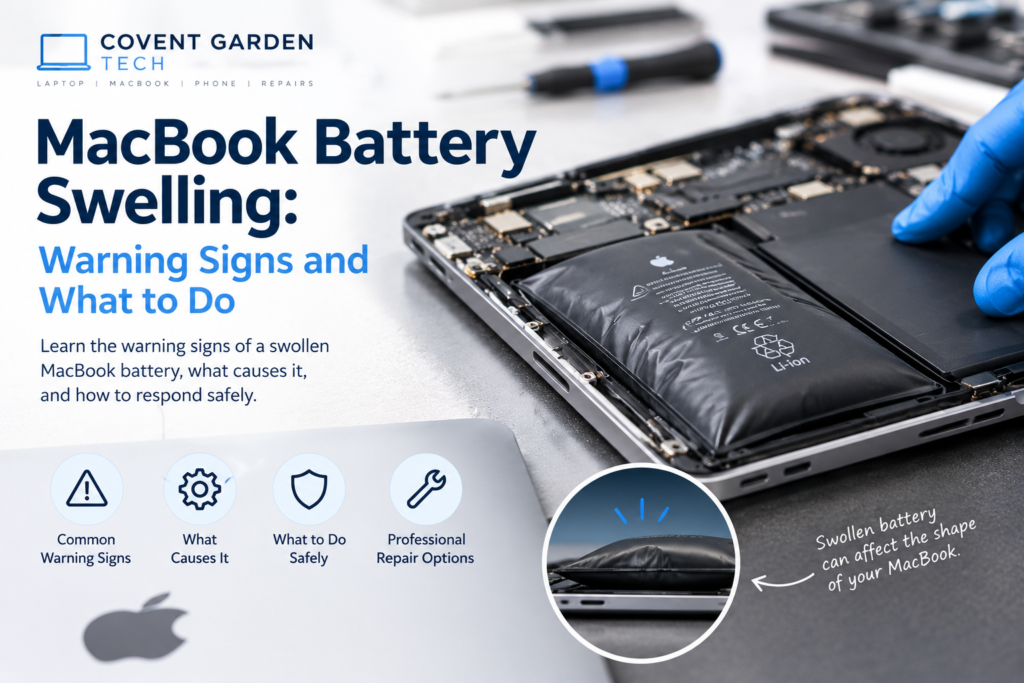
Battery swelling can affect the shape of your MacBook, make the trackpad difficult to use, or cause the case to separate. It can also create a safety risk if the battery is damaged or handled incorrectly. Knowing the warning signs can help you take the right steps before the problem becomes more serious.
In this guide, we explain the common signs of MacBook battery swelling, why it happens, and what you should do if you suspect your device has a swollen battery.

What Is a Swollen MacBook Battery?
A MacBook battery contains lithium-ion cells that store and supply electrical energy. As the battery ages or develops a fault, chemical reactions inside the cells can produce gas. This gas may cause the battery to expand, making it larger than its normal size.
This condition is known as battery swelling. Because the battery is fitted inside the MacBook, the expansion can put pressure on nearby components, including the trackpad, keyboard, and outer casing.
Battery swelling can happen in different MacBook models, including MacBook Air and MacBook Pro. It is not always caused by incorrect use, and even a device that appears to work normally can develop a battery fault.
Common Warning Signs of MacBook Battery Swelling
Recognising the early warning signs can help you avoid further damage to your device.
1. The Trackpad Becomes Difficult to Click
One of the most noticeable symptoms is a trackpad that becomes stiff, difficult to click, or stops clicking properly.
A swollen battery beneath the trackpad may put pressure on the mechanism and affect how it works. If your trackpad suddenly feels different or becomes raised, do not press it repeatedly to test it.
Although trackpad problems can have other causes, a change in its shape or clicking action should be checked by a professional.
2. The MacBook Case Looks Bulged
Check whether the bottom cover appears uneven or has started to bulge outward. You may also notice that the MacBook no longer sits flat on a desk.
A swollen battery can push against the casing and change the device’s shape. Do not attempt to push the cover back into place or tighten the screws to flatten it.
If the casing is visibly deformed, stop using the MacBook and arrange a professional assessment.
3. The Keyboard or Trackpad Sits Unevenly
Battery expansion can put pressure on the internal structure of the MacBook. As a result, the keyboard may appear raised, the trackpad may sit unevenly, or certain keys may become difficult to press.
These symptoms can also result from other hardware problems. However, when they appear alongside a bulging case or an unusual gap between components, battery swelling is a possible cause.
4. The MacBook Wobbles on a Flat Surface
Place your MacBook on a stable, flat surface without pressing down on it. If it rocks from side to side when it previously sat evenly, the casing may have changed shape.
A swollen battery is one possible explanation, although a damaged bottom cover or uneven feet can cause similar symptoms.
Do not try to flatten the device by applying pressure. If you suspect battery swelling, stop using it and seek professional advice.
5. The Battery Life or Performance Changes
A swollen battery may also show signs of battery deterioration, such as reduced runtime, unexpected shutdowns, or unusual charging behaviour.
However, these symptoms alone do not confirm swelling. A battery can lose capacity without expanding, and software or other hardware faults can also affect battery performance.
If you notice changes in battery life together with physical deformation, treat the situation seriously.
6. The MacBook Feels Unusually Hot or Produces an Unusual Smell
Excessive heat, hissing sounds, or an unusual chemical smell can indicate a more serious battery fault.
If you notice these signs, stop using the MacBook immediately. If it is safe to do so, disconnect the charger without touching a hot, damaged, or leaking device. Keep people away from it and contact an appropriate battery repair professional or local emergency service if there is smoke, fire, or an immediate danger.
Do not continue charging the device to see whether the symptoms disappear.
What Causes a MacBook Battery to Swell?
Several factors can contribute to battery swelling.
Battery Age and Wear
MacBook batteries gradually wear out through normal use. As lithium-ion cells age, their internal chemistry changes, increasing the possibility of battery failure.
An older battery may be more likely to develop problems, but swelling can also occur in a relatively new device.
Exposure to High Temperatures
Heat can accelerate battery degradation and increase the risk of damage. Leaving a MacBook in a hot car, exposing it to direct sunlight, or using it in an environment with poor ventilation can contribute to battery stress.
Always use your MacBook within Apple’s recommended operating conditions and keep its ventilation areas clear.
Battery Damage
A strong impact, bending, crushing, or other physical damage can affect the battery’s internal structure. Damaged lithium-ion batteries can become unsafe even if the MacBook still turns on.
Avoid using a device that has suffered significant physical damage if you suspect the battery may be affected.
Battery or Charging Faults
An internal battery defect or a problem with charging components can contribute to battery failure. Swelling does not automatically mean the charger caused the problem, so the device should be assessed rather than assuming a particular cause.
Using a compatible, reliable charger and having faults checked promptly can help protect your device.
What Should You Do If Your MacBook Battery Is Swollen?
If you suspect your MacBook has a swollen battery, follow these steps.
1. Stop Using the MacBook
Stop working on the device as soon as you suspect swelling. Do not continue using it simply because it still turns on or appears to function normally.
If the device is hot, smoking, leaking, or making unusual sounds, do not handle it unnecessarily.
2. Disconnect the Charger If Safe
If the MacBook is connected to power and it is safe to disconnect it, unplug the charger. Do not touch damaged areas or attempt to remove a battery that appears swollen.
Avoid charging the device again until it has been assessed and repaired.
3. Do Not Press or Puncture the Battery
Never attempt to squeeze, flatten, puncture, bend, or open a swollen battery. Do not try to remove it with household tools.
A damaged lithium-ion battery can release hazardous substances, catch fire, or enter thermal runaway. Battery removal should be handled by a qualified technician using appropriate procedures.
4. Keep the Device Away from Heat
Do not place the MacBook near heaters, in direct sunlight, or in a hot vehicle. Keep it away from flammable materials if this can be done safely.
If the battery is actively smoking, hissing, leaking, or becoming dangerously hot, do not try to move it. Keep your distance and contact local emergency services.
5. Arrange a Professional Battery Inspection
Contact Apple Support, an Apple Authorised Service Provider, or a reputable MacBook repair specialist. Explain the physical symptoms and mention that you suspect battery swelling.
A professional can assess the battery and surrounding components and determine the appropriate repair or replacement procedure.
6. Do Not Attempt a Backup If the Device Is Unsafe
Your files may be important, but safety should come first. Do not turn on or charge a visibly swollen or otherwise unsafe MacBook just to back up your data.
Ask the repair provider about safe data-preservation options. If the device is assessed as safe to operate, a technician can advise whether a backup is appropriate before repair.
Can You Continue Using a MacBook with a Swollen Battery?
No. A MacBook with a suspected swollen battery should not be used or charged until it has been professionally assessed.
Continuing to use it can place additional pressure on internal components and increase the risk of battery damage. Even if the device appears to work normally, swelling is a physical warning sign that should not be ignored.
The safest option is to stop using the device and arrange a suitable repair.
Can a Swollen MacBook Battery Be Repaired?
In most cases, a swollen battery needs to be replaced rather than repaired. The battery itself should not be opened or modified.
The repair process generally involves a technician assessing the battery, removing it using the appropriate procedure, and installing a suitable replacement. They may also check the trackpad, keyboard, casing, and other nearby components for damage caused by the expansion.
The exact process depends on the MacBook model, battery design, and condition of the device.
If the casing or trackpad has been affected, additional repairs may be necessary. A professional inspection helps establish the full extent of the problem before work begins.
How Much Does MacBook Battery Replacement Cost?
The cost of MacBook battery replacement depends on several factors, including:
MacBook model: MacBook Air and MacBook Pro models use different battery designs.
Device age: Parts availability can vary between newer and older models.
Repair provider: Pricing differs between Apple, authorised service providers, and independent repair shops.
Additional damage: A swollen battery may have affected the trackpad, keyboard, or casing.
Warranty or service coverage: Depending on the circumstances, some repair costs may be covered by applicable warranty terms or service programmes.
For an accurate estimate, provide the repair provider with your MacBook model and describe any visible swelling. Ask for a quote that explains whether the price includes parts, labour, and any necessary additional repairs.
How to Reduce the Risk of Future Battery Problems
Battery swelling cannot always be prevented, but good device care may help reduce battery stress.
Keep your MacBook within Apple’s recommended temperature range.
Avoid leaving it in direct sunlight or inside a hot car.
Use a suitable charger and cable in good condition.
Keep ventilation areas clear during use.
Check the battery condition periodically through macOS settings.
Arrange an inspection if you notice physical changes or unusual battery behaviour.
Avoid dropping, bending, or placing heavy objects on the MacBook.
These habits can help maintain battery health, but they do not guarantee that swelling will never occur.
Why Choose Professional MacBook Repair?
MacBook batteries are installed inside compact devices and can be difficult to access safely. Removing a swollen battery requires appropriate tools, experience, and precautions.
A professional repair service can assess the battery, identify possible damage to nearby components, and recommend a suitable replacement. This helps reduce the risk of further damage and ensures the device is checked before it returns to regular use.
If your MacBook shows signs of battery swelling, Covent Garden Tech can be a starting point for exploring MacBook repair options in London. Contact the service provider to confirm battery replacement availability, pricing, and the repair process for your particular model.
Final Thoughts
A swollen MacBook battery is a hardware problem that should never be ignored. Warning signs include a bulging case, a raised trackpad, an uneven keyboard, or a MacBook that no longer sits flat on a surface.
If you notice any of these symptoms, stop using and charging the device, avoid handling or opening the battery, and arrange a professional inspection. If there is smoke, leakage, hissing, or dangerous heat, keep your distance and seek emergency assistance when needed.
Taking the right steps early can help protect your safety, prevent additional damage, and give your MacBook the best chance of a suitable repair.
Need MacBook repair advice in London? Visit Covent Garden Tech to explore available repair services and ask about battery replacement for your MacBook model.