
Introduction
A MacBook can become warm during demanding tasks such as video editing, gaming, large file transfers, or other processor-intensive work. However, if your MacBook becomes excessively hot during normal browsing or everyday use, has constantly loud fans, slows down, or shuts down unexpectedly, there may be an underlying issue that needs attention.
Apple explains that Mac computers use temperature sensors and, on models equipped with fans, automatically increase fan speed when internal temperatures rise. Keeping ventilation clear and using the MacBook on a hard, flat surface can help maintain proper temperature control.

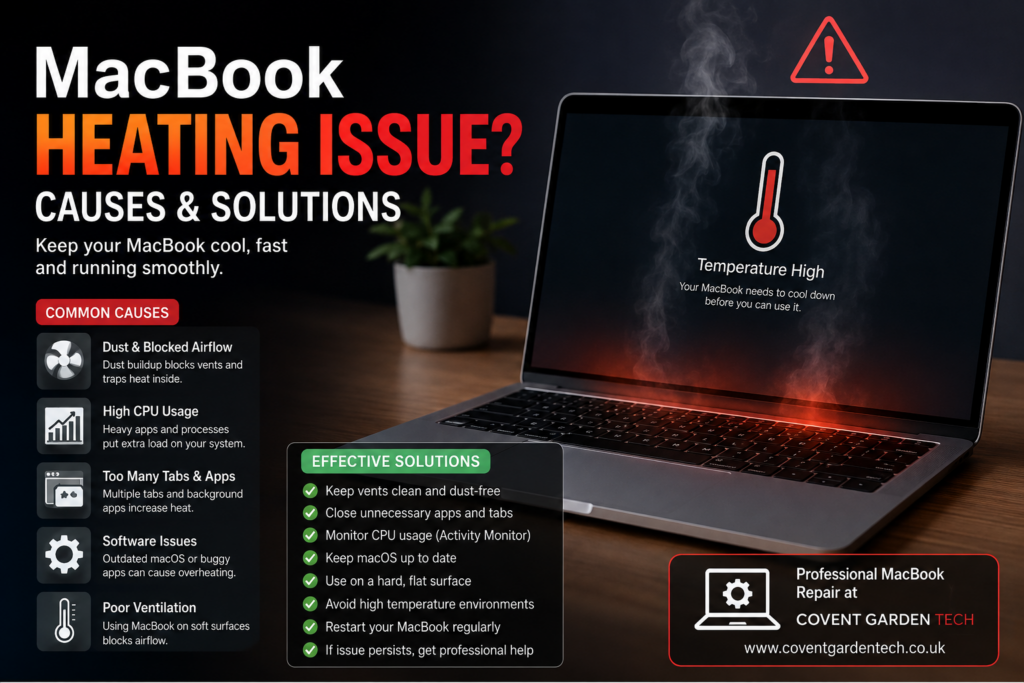
Common Causes of MacBook Heating
1. Dust and Blocked Airflow
Dust, lint, and debris can accumulate around internal cooling components and ventilation areas. Restricted airflow makes it harder for heat to escape, potentially causing the MacBook to run hotter and its fans to work harder.
Solution: Have the MacBook professionally inspected and cleaned when internal dust buildup is suspected. Avoid blocking ventilation openings during use.
2. Heavy CPU Usage
Resource-intensive applications can put significant pressure on the processor. Video editing, 3D applications, gaming, large downloads, and other demanding processes can naturally produce more heat.
You can check which applications are consuming processor resources through Activity Monitor. If an unfamiliar or unnecessary application is using excessive CPU resources, closing it may help reduce the workload.
3. Too Many Browser Tabs and Background Applications
Having numerous browser tabs, extensions, and background applications running simultaneously can increase system workload. This may cause the MacBook to become warmer and the fans to run more frequently.
Solution: Close applications and browser tabs that you are not using. Check Activity Monitor if the MacBook continues to run hot.
4. Software Problems
Outdated software, malfunctioning processes, or applications that continuously consume system resources can contribute to excessive heat. Keeping macOS updated is one of Apple’s recommended steps for managing Mac performance and energy use.
Solution: Install available macOS updates and restart the MacBook. If a particular application repeatedly causes high CPU usage, check whether an updated version is available.
5. Poor Ventilation
Using a MacBook on a bed, pillow, sofa, blanket, or other soft surface can restrict airflow. Apple recommends using a hard, flat surface to help maintain appropriate temperature control.
Solution: Use your MacBook on a desk or another stable, hard surface. Keep ventilation openings unobstructed.
6. High Room Temperature
The surrounding environment can also affect your MacBook’s cooling performance. Apple states that MacBook computers are designed to operate in ambient temperatures between 10°C and 35°C (50°F and 95°F).
Avoid leaving your MacBook in a hot car or using it in an excessively hot environment.
How to Fix a MacBook Heating Issue
If your MacBook is heating up more than usual, try these basic troubleshooting steps:
Restart the MacBook.
Close unnecessary applications and browser tabs.
Check Activity Monitor for unusually high CPU usage.
Install the latest available macOS updates.
Use the MacBook on a hard, flat surface.
Keep vents and ventilation areas clear.
Avoid using the MacBook in excessively hot surroundings.
Use an appropriate, Apple-authorized power adapter.
If the problem continues, arrange a professional diagnostic inspection.
For Intel-based Macs, Apple provides specific guidance for dealing with unexpected heavy fan use, including SMC-related troubleshooting. Apple silicon MacBooks have different thermal and power-management behavior, so the appropriate troubleshooting steps can vary by model.
When Should You Get Professional MacBook Repair?
Occasional warmth during demanding tasks is not necessarily a fault. However, professional inspection is recommended if your MacBook:
Gets extremely hot during light everyday use
Has fans running loudly for extended periods
Becomes noticeably slow when it gets hot
Frequently freezes or shuts down
Continues heating after software and ventilation checks
Shows signs of a possible internal hardware problem
Persistent overheating can sometimes be related to cooling-system problems or other hardware faults, so repeatedly ignoring the symptoms is not a good idea.
Professional MacBook Repair at Covent Garden Tech
If your MacBook is overheating, getting a professional diagnosis can help identify the actual cause instead of relying on guesswork. A technician can inspect the device, check its cooling system and software-related issues, and determine whether cleaning, component repair, or another service is appropriate.
For professional MacBook repair and technical support, visit Covent Garden Tech.
Final Thoughts
A warm MacBook does not always mean something is wrong. Intensive workloads naturally generate heat, and the cooling system is designed to respond to increased temperatures. However, excessive heat during simple tasks, persistent loud fan activity, severe performance slowdowns, or unexpected shutdowns should not be ignored.
Keeping your MacBook updated, maintaining good ventilation, reducing unnecessary workloads, and getting professional assistance when problems persist can help keep your device running reliably and efficiently.