
Introduction
Your smartphone is more than just a device for calls and messages. It stores personal photos, emails, passwords, banking information, work documents, and other valuable data. That makes it an attractive target for cybercriminals.
Although modern smartphones have strong built-in security features, viruses, malware, malicious apps, phishing attacks, and other threats can still put your device and personal information at risk.
The good news is that a few simple habits can significantly improve your smartphone security.

What Is Smartphone Malware?
Malware is short for malicious software. It is designed to perform unwanted or harmful activities on a device.
Depending on the type of malware, it may attempt to:
Steal personal information
Access your accounts
Display unwanted advertisements
Track your activity
Send messages without your permission
Lock or damage files
Collect passwords or payment information
Gain unauthorised access to your device
Not every suspicious phone problem is necessarily caused by malware. Slow performance, overheating, battery drain, or pop-ups can have many different causes. However, unusual behaviour should not be ignored.
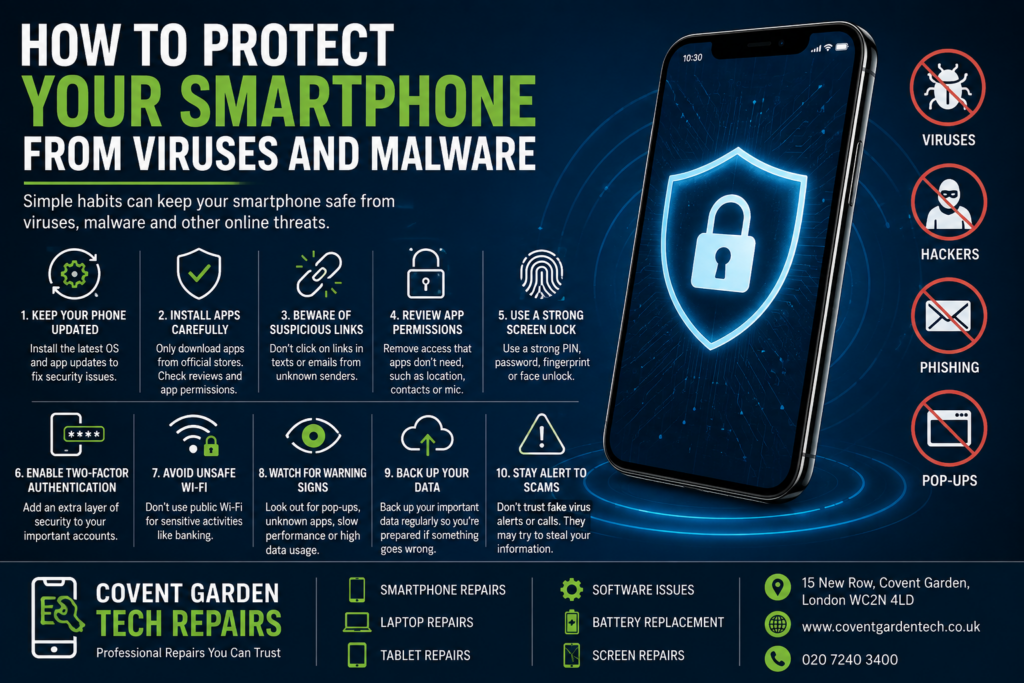
1. Keep Your Smartphone Updated
One of the simplest ways to improve smartphone security is to install operating system and security updates when they become available.
Updates don’t just introduce new features. They can also fix security vulnerabilities that attackers may otherwise exploit.
Check your phone’s settings regularly and enable automatic updates where appropriate.
Keeping your operating system and apps up to date reduces the risk of your device being exposed to known security weaknesses.
2. Only Install Apps From Trusted Sources
Be careful about where you download applications.
Official app stores generally have security checks and policies designed to reduce malicious applications, but you should still pay attention to what you install.
Before downloading an app, consider:
Who developed it?
Does the developer appear legitimate?
Are the reviews credible?
Does the app request unnecessary permissions?
Does the number of downloads seem consistent with the app’s reputation?
Is the app asking you to download something from an unfamiliar website?
Avoid downloading applications from suspicious links, unofficial websites, or unknown sources simply because they promise free software, discounts, or premium features.
3. Be Careful With Links in Text Messages and Emails
Phishing remains one of the most common ways criminals attempt to steal personal information.
You might receive a message claiming to be from a bank, delivery company, online retailer, social network, or another organisation. The message may ask you to click a link, confirm your account, pay a fee, or provide personal information.
Don’t automatically trust a message just because it looks professional.
If you’re unsure, don’t click the link. Instead, open the company’s official website or app independently and check whether there is actually an issue with your account.
4. Review App Permissions
When you install an application, it may request access to your camera, microphone, contacts, location, photos, or other information.
Some permissions may be necessary for an app to work properly. Others may not be.
Review the permissions granted to your applications and remove access that isn’t necessary.
For example, a simple calculator app probably doesn’t need access to your contacts or microphone.
Regularly checking permissions can help you maintain better control over what your apps can access.
5. Use a Strong Screen Lock
Your smartphone contains a huge amount of personal information, so physical security matters too.
Use a strong PIN, password, fingerprint, or facial authentication where supported.
Avoid easy-to-guess PINs such as birthdays or simple sequences.
A secure screen lock can help protect your information if your phone is lost or stolen.
6. Enable Two-Factor Authentication
Two-factor authentication, often called 2FA, adds another layer of protection to your online accounts.
With 2FA enabled, knowing your password alone may not be enough to access an account. A second verification method is required.
Consider enabling 2FA for important accounts such as:
Email
Banking
Social media
Cloud storage
Shopping accounts
Work accounts
Your email account is particularly important because it may be used to reset passwords for other services.
7. Avoid Suspicious Wi-Fi Networks
Public Wi-Fi can be convenient when you’re travelling, shopping, or working away from home. However, you should be cautious when connecting to unfamiliar networks.
Don’t assume that a network is safe simply because it has a familiar-looking name.
When using public Wi-Fi:
Avoid accessing sensitive accounts if you’re unsure about the network
Don’t enter confidential information into suspicious websites
Use trusted websites with HTTPS
Turn off automatic Wi-Fi connections when appropriate
Consider using mobile data for sensitive activities
8. Don’t Ignore Unusual Phone Behaviour
Your smartphone may show warning signs when something isn’t right.
Potential red flags include:
Unexpected pop-ups
Apps appearing that you don’t remember installing
Sudden battery drain
Unusually high data usage
Frequent crashes
Browser redirects
Unwanted advertisements
Accounts showing unfamiliar activity
Your phone becoming unusually slow without an obvious reason
These symptoms don’t automatically mean your phone has malware, but they are worth investigating.
9. Back Up Your Important Data
Security isn’t only about preventing malware. It’s also about being prepared if something goes wrong.
Regularly back up important photos, contacts, documents, and other data using a trusted cloud service or another secure backup method.
A current backup can make recovery much easier if your phone is lost, damaged, compromised, or needs to be reset.
Remember that a backup is most useful when it is performed before you experience a serious problem.
10. Be Careful With Fake Security Warnings
One common trick is the fake virus alert.
You may visit a website and suddenly see a message claiming that your phone has been infected and that you must immediately download an app or call a number.
Don’t panic.
These messages are often designed to scare you into clicking something, installing unwanted software, or giving away personal information.
Close the suspicious webpage rather than following its instructions. If you continue to see unusual warnings, consider having the device professionally checked.
What Should You Do If You Think Your Phone Has Malware?
If you believe your smartphone may be infected, don’t ignore the problem.
Start by disconnecting from suspicious networks and reviewing recently installed applications. Remove apps you don’t recognise, install available system updates, and change important account passwords if you believe they may have been compromised.
For serious or persistent problems, professional diagnosis can be the safest option.
A professional repair technician can help determine whether the problem is caused by malware or another issue such as a failing battery, damaged hardware, problematic software, or unwanted applications.
Covent Garden Tech Repairs provides smartphone and other device repair services in central London, including smartphone repair and software-related troubleshooting. The business is listed at 15 New Row, Covent Garden, London WC2N 4LD.
Protect Your Smartphone Before Problems Start
You don’t need to be a cybersecurity expert to improve your smartphone’s security.
Keeping your phone updated, downloading apps carefully, using strong passwords and 2FA, checking app permissions, avoiding suspicious links, and maintaining regular backups can all make a significant difference.
Most importantly, don’t ignore unusual behaviour. If something doesn’t look right, investigate it before the problem becomes more serious.
If you need professional help with a smartphone or other device, visit Covent Garden Tech Repairs to learn more about their repair services.
Final Tip
Think before you click, keep your software updated, and protect your important data with regular backups. A few minutes spent on smartphone security today could save you significant time, money, and frustration later.