
Introduction
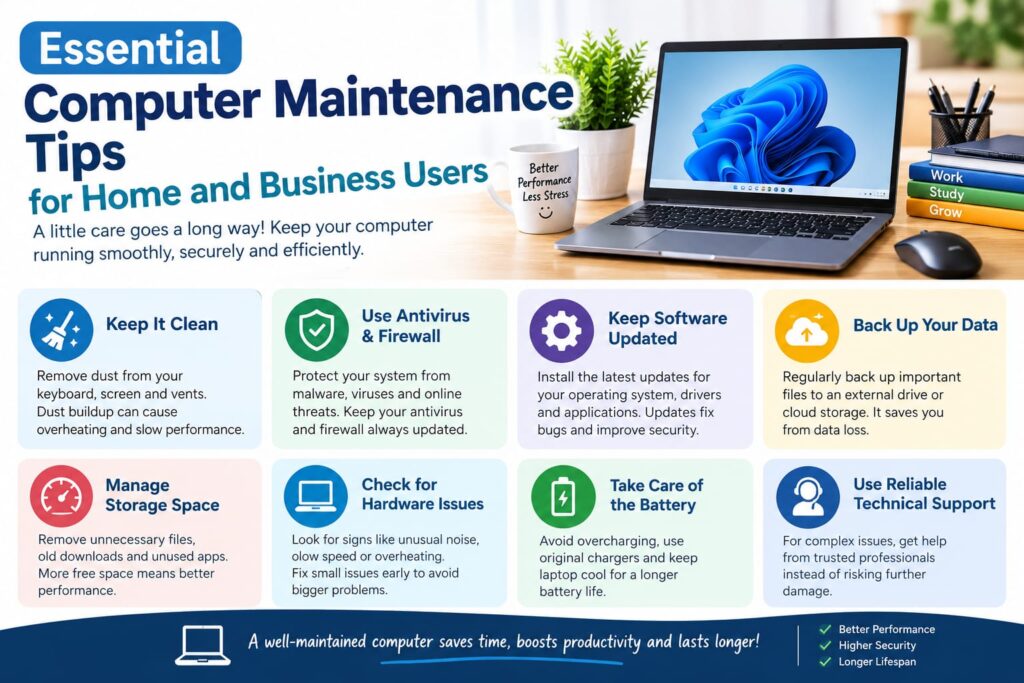
Whether you use your computer for working from home, managing a business, studying, shopping online or simply staying connected, regular computer maintenance is essential. A well-maintained computer is more likely to perform reliably, last longer and remain protected against security threats.
Ignoring routine maintenance can lead to slow performance, unexpected crashes, data loss and security vulnerabilities. Fortunately, many essential maintenance tasks are straightforward and can be incorporated into a regular routine.
In this guide, we explore some of the most important computer maintenance tips for home and business users.

1. Keep Your Operating System and Software Updated
One of the simplest and most important maintenance tasks is keeping your operating system and applications up to date.
Software updates often include:
Security patches
Bug fixes
Performance improvements
Compatibility improvements
New features
Cybercriminals can exploit vulnerabilities in outdated software, so delaying updates can leave your computer unnecessarily exposed. The UK’s National Cyber Security Centre recommends installing software and device updates promptly and enabling automatic updates where available.
For business users, keeping computers and applications updated across the organisation is particularly important. Unsupported operating systems and applications should also be replaced when possible.
Tip: Enable automatic updates for your operating system, web browser and commonly used applications.
2. Regularly Back Up Important Files
A computer can fail without warning. Hard-drive problems, accidental deletion, theft, malware and ransomware can all result in valuable data becoming inaccessible.
Important files might include:
Work documents
Family photographs
Financial records
Customer information
Invoices
Business databases
Emails
Project files
Regular backups provide a way to recover important information if something goes wrong. The NCSC recommends maintaining backups of data that is essential to your personal or business activities and testing that backups can actually be restored.
For businesses, consider keeping multiple backup copies in different locations. An offline or otherwise isolated backup can provide additional protection against ransomware.
Tip: Don’t simply create backups and forget about them. Periodically check that the backup contains your important files and that you know how to restore them.
3. Keep Your Computer Clean and Dust-Free
Dust and dirt can accumulate inside desktop computers and around ventilation openings. Over time, this can restrict airflow and contribute to overheating.
Excessive heat can affect performance and may shorten the lifespan of internal components.
For basic maintenance:
Keep ventilation openings clear.
Don’t block laptop air vents.
Keep desktop computers away from dusty or damp areas.
Clean keyboards, screens and external surfaces regularly.
Consider professional internal cleaning if a computer has significant dust buildup.
When cleaning, avoid spraying liquids directly onto the computer. Use appropriate cleaning equipment and follow the manufacturer’s recommendations.
4. Maintain Adequate Storage Space
A computer with a nearly full storage drive can experience performance problems and make it difficult to install updates or save new files.
Review your storage regularly and remove files you no longer need.
You can:
Delete temporary files.
Remove unused applications.
Empty recycling/trash folders.
Move large media files to suitable storage.
Archive old business documents.
Review large downloads and duplicate files.
However, don’t delete files simply because you don’t recognise them. Some system files are necessary for your computer to operate correctly.
Tip: Before deleting large amounts of data, make sure important files have been backed up.
5. Protect Your Computer From Malware
Viruses, ransomware, spyware and other forms of malware can cause serious problems for both individuals and businesses.
Use reputable security software and keep it updated. Modern operating systems often include built-in security features, but these should not be treated as a substitute for good security practices.
You should also be cautious when:
Opening unexpected email attachments.
Clicking unfamiliar links.
Downloading software from unknown websites.
Installing applications from untrusted sources.
Responding to suspicious pop-ups.
For businesses, device security becomes even more important because a compromised computer could potentially expose customer information, business documents or account credentials.
6. Use Strong Passwords and Two-Step Verification
Computer maintenance isn’t only about hardware and performance. Protecting the accounts you use on your computer is equally important.
Use strong, unique passwords for important accounts and enable two-step verification (2SV) wherever it is available.
For business users, pay particular attention to accounts such as:
Business email
Online banking
Cloud storage
Website administration
Payroll and HR systems
Social media
Customer management platforms
The NCSC identifies protecting important online accounts as a key part of reducing the risk of account compromise.
7. Restart Your Computer Regularly
Many people leave their computers running continuously, particularly at work. While modern systems are designed to handle extended periods of use, regular restarts can still be beneficial.
Restarting your computer can:
Complete certain software updates.
Clear temporary system states.
Resolve minor software problems.
Refresh system resources.
Help identify developing problems.
If your computer starts behaving unusually, a restart is a simple first troubleshooting step. If the issue continues, however, it may indicate a more serious problem.
8. Check Your Computer’s Performance
A gradual decline in performance can be easy to ignore. A computer that takes considerably longer to start, frequently freezes or struggles with everyday applications may require attention.
Common causes of poor performance include:
Insufficient storage
Too many startup applications
Outdated software
Malware
Hardware degradation
Insufficient memory
Overheating
Ageing components
For business users, slow computers can also affect productivity. If employees regularly spend several minutes waiting for applications to load or computers to restart, the lost time can quickly add up.
Rather than replacing a computer immediately, a professional assessment may identify a more cost-effective solution, such as a storage upgrade, memory upgrade, software optimisation or cleaning.
9. Look After Laptop Batteries
Laptop batteries naturally lose capacity over time. However, good usage habits can help maintain your laptop’s overall usability.
Keep your laptop away from excessive heat and ensure ventilation is not obstructed. If you notice unusual swelling, excessive heat or other signs of battery damage, stop using the device and seek professional assistance.
If a laptop is becoming difficult to use away from a power socket, a battery replacement may be worth considering depending on the age and condition of the device.
10. Don’t Ignore Warning Signs
Small computer problems can sometimes develop into much larger issues.
Pay attention to warning signs such as:
Frequent crashes
Unusual noises
Excessive heat
Random shutdowns
Very slow performance
Repeated error messages
Unexpected pop-ups
Files disappearing or becoming inaccessible
Problems connecting to networks or peripherals
If a computer suddenly behaves differently, don’t assume the issue will resolve itself. Early troubleshooting can potentially prevent further damage or data loss.
11. Business Users Should Have a Maintenance Routine
Businesses rely heavily on technology, so computer maintenance should be part of an organisation’s regular IT processes rather than something done only when a problem occurs.
A basic business maintenance programme can include:
Daily or weekly
Check backups.
Install important security updates.
Monitor unusual computer behaviour.
Ensure important files are being saved correctly.
Monthly
Review storage usage.
Remove unnecessary applications and files.
Check security software.
Review user accounts and access permissions.
Test selected backup files.
Periodically
Inspect hardware.
Review the age and condition of computers.
Check whether software is still supported.
Review cybersecurity practices.
Assess whether hardware upgrades or replacements are required.
The NCSC recommends that organisations identify critical data and systems, maintain regular backups and test restoration procedures.
12. Know When to Call a Professional
Not every computer problem should be tackled yourself.
If you are experiencing recurring crashes, hardware faults, data recovery issues, networking problems, malware infections or unexplained performance problems, professional IT support can help identify the underlying cause.
For businesses, professional support can also help reduce downtime and establish a proactive maintenance strategy rather than constantly responding to emergencies.
Computer Maintenance: Prevention Is Better Than a Crisis
Regular computer maintenance doesn’t have to be complicated. Keeping software updated, backing up important files, maintaining adequate storage, protecting devices from malware and monitoring performance can make a significant difference.
For home users, these habits can help protect personal files and extend the useful life of your technology. For businesses, proactive maintenance can help reduce downtime, protect important information and keep employees productive.
If your computer is running slowly, experiencing repeated problems or needs professional attention, Covent Garden Tech can help you assess the issue and find the right solution.
Visit Covent Garden Tech to learn more about available IT and computer support services:
https://www.coventgardentech.co.uk/
Final Computer Maintenance Checklist
Before you finish, ask yourself:
Is my operating system up to date?
Are my applications updated?
Are important files backed up?
Have I tested my backups?
Is my computer free from unnecessary files?
Do I have adequate storage space?
Is my security software active and updated?
Are my important accounts protected with strong passwords and 2SV?
Are the computer’s vents and cooling areas clean?
Have I addressed any unusual noises, crashes or performance problems?
For business computers, are maintenance and backup responsibilities clearly assigned?
A little maintenance today can help prevent a much bigger computer problem tomorrow.